Sunday, December 14, 2014

How to install Adobe flashplayer from .tar.gz from adobe website

Though Adobe flash is getting less and less popular with the rise of HTML5 for online video content, it is still an integral part of the web. Adobe pushes security updates to its 11.2.202.XXX version of flashplayer even though it has pledged not to update it to newer version numbers.

Popular Linux distros offer easy ways to install and update the non-free Adobe flash plugin. For example Ubuntu lets you install Flash through a package called 'flashplugin-installer'. Similarly Linux Mint offers 'mint-flashplugin'. The problem with these install scripts is that they don't work well when you are behind a company or university's proxy settings (sometimes even after you set your proxy environment according to this blog). The way to setup proxy to your wget is given here and here. But even after trying those, my mintupdate-flash was not able to fetch the latest flash though it informed me of an update that is available (on my Linuxmint Debian Edition install).

So I had to resort to installing it manually by downloading the binary from Adobe's website. The method I followed was pretty much based on this thread as per user IgnitE's post. This blogpost also tells us how to install flashplayer for Debian based distros.

I'll summarize what I did to install Adobe flashplayer from Adobe's website and it works for an update as well as a fresh install of flashplayer from Adobe directly.

First go to Abode flash download page, choose the updated version as .tar.gz version. Make sure you choose the 64-bit version or 32-bit version according to the Linux installation you have. The download usually goes to the Downloads folder in your home directory(~).


Make a directory under ~/Downloads to place the untarred files

mkdir adobeflash

Untar the contents into it

tar -xzf install_flash_player_11_linux*.tar.gz -C adobeflash/

Change to the directory where the files are untarred

cd adobeflash

Now there would be: /usr, libflashplayer.so and readme.txt files in the untarred folder. We have to copy the /usr and libflashplayer.so to the appropriate directories for the install process.

First,

sudo cp -r usr/* /usr


If you are in Debian or Ubuntu prior to 14.04 i.e., 13.10 and below follow the below command (Yes, it works for both Firefox and Iceweasel).

sudo cp libflashplayer.so /usr/lib/mozilla/plugins/

IF you are in Ubuntu 14.04 or above, then use the following command

sudo cp libflashplayer.so /usr/lib/firefox/browser/plugins

Restart the browser and you have the latest flash installed, check it by right clicking flash content or by clicking here.

Apart from this you can get the Google updated Pepper flash by installing Google Chrome. But for now, I would prefer to use the flashplugin provided by Adobe in Firefox and Chromium.


PS.: The problem of mintupdate for flash was not due to wget proxy problem, but due to the fact that linux mint software repository mirror has been clogged due to heavy usage. When I changed the software update repositories from the mint update manager (Software updates - Edit - Preferences - Update sources; change the mirrors to something else than the default) and refreshed the cache, I was able to install mintflash update properly even under my proxy settings. So it is better to check your repo mirrors before trying the method mentioned above. Otherwise the update manager would still be showing an update unless you unistall the mint-flashplugin package.

Thursday, November 13, 2014

How to create new users in Ubuntu/ Debian and delete them

Creating new users is the probably the most basic task in a linux system. Though there are lot of forum posts which help you in this, I am going to post once again for someone who might benefit from it.

For this posting, we shall call this new user as 'tedy'. So be sure to substitute this user with your username.

To create a new user:

sudo useradd -m tedy


adding -m flag will create a home directory for 'tedy'  as well.

When the user is created there is no password for him/her

So, issue the following command to create a password for the new user 'tedy'

sudo passwd tedy


Now if you want 'tedy' to be an administrator or superuser or root you have to add him to the group "sudo", for this:

sudo adduser tedy sudo


Now we have to specify which shell tedy should use, we specify that in case your distro cannot map it directly

sudo chsh -s /bin/bash tedy


That's it you have created a brand new user account with superuser powers

The simplest way of removing our new user 'tedy' involves two commands

sudo userdel tedy


then remove his home totally

sudo rm -r /home/tedy


You might need to delete or add new users to test a new gui settings of a beta distribution which gets updated daily.


The default user created in Ubuntu will be a part of several groups such as adm, cdrom, lpadmin etc so we need to add our new user tedy to those groups in case he has to act as the same user created by Ubuntu by default during install.


sudo usermod -a -G adm,cdrom,lpadmin,sudo,sambashare,dip,plugdev tedy


Friday, December 28, 2012

Installing Samba and sharing files within a home or office network


There are innumerable tutorials to explain sharing a folder, a partition or a disk drive using samba. Here's one more, it doesn't hurt, on the contrary it may help someone.

The best way to use old laptops and desktops is by installing a Linux distro and experimenting with it as a file server. After you install the OS and later ssh, samba, remote desktop, apache etc., you can add it to the network and do all the rest with another computer through remote desktop or ssh.

I used Linux Mint 14, Nadia, which is superb, in terms of quality, functionality, ease and aesthetics. In my scenario, I have mounted the storage partition as /D in my Linux Mint box. For this tutorial, we are going to use an ordinary user named "john" who's password will be needed to login to the samba network.

I am going to tell you how to install samba and share your folder step by step:

1) Install samba

sudo apt-get install samba


2) Stop samba in case it is running

sudo /etc/init.d/samba stop


3) Backup your default samba config file smb.conf (this step is optional)

sudo mv /etc/samba/smb.conf /etc/samba/smb.conf.backup


4) Under home or any location create a new smb.conf using, vi, nano, emacs, gedit, or kate

the contents looks like this:


[test]
path = /D
available = yes
valid users = john
read only = no
browsable = yes
public = yes
writable = yes

Explanation:

i) What does [test] mean ? Your shared folder will be called test in the network, but you can use any name as you like

ii) What is /D? It is the path is the path to the folder you want to share e.g if you want to share a newdirectory in home, it would be /home/john/newdirectory
In my case, I mounted the NTFS D partition (of windows) as /D so I used it.

iii) Who is john? john is a user whose credentials will be needed to login to the shared folder. john can be replaced by any name you want to use.

Save the smb.conf file.

5) Copy your created smb.conf to its right workplace

sudo cp smb.conf /etc/samba

6) Change permissions of the shared folder in case it does not have read-write permission to all users
sudo chmod 0777 /D

7) Add a user with access rights to the samba share

Create user john without a home (i.e., /home/john) using /bin/true feature

sudo useradd -s /bin/true john

Create password for john (optional), if you don't want to use john as normal user login, you can skip this step

sudo passwd john

8) Make sure you add john to group plugdev

sudo usermod -a -G plugdev john

9) Create a samba password same as above (same as login password) to avoid confusion

sudo smbpasswd -a john

9) Test the parameters

sudo testparm

10) Restart samba

sudo restart smbd

VoilĂ  samba

Check your folder in your Linux (under network) or windows network (under Workgroup). Enter username john and password, now your old computer is a silent new file server.

To stop sharing and removing samba:

1) Stop samba

sudo stop smbd


2) Delete user

sudo userdel -r john


3)

sudo apt-get remove samba --purge


PS: I personally feel running a computer as a server continuously for trivial functions is a huge waste of power. So shut down your "server" whenever you won't use it for extended periods of time. Everytime you start the computer, samba will come alive and serve your folders and files.


Tuesday, March 27, 2012

Ubuntu Precise Pangolin - Another KDE user tastes Unity

The new Ubuntu LTS release looming in the horizon tempted me to try it out as a candidate for a my next Linux OS. Here's what I think.

Ubuntu 12.04 LTS is pretty stable for its current status as beta. The linux kernel at version 3.2.0-20 feels good and seems to support wider range of hardware. The AMD Turion CPU seemed to be reasonably cool while idle. But still Linux has a long way to go in terms of prolonging battery usage. All applications are up to date at least to the latest stable versions which is the best thing in Ubuntu.

Now jumping into the hot topic of opining about Unity, I have mixed feelings. I have migrated from my favourite KDE and experimenting with Unity here. To me Gnome is as strange as is Unity. So I am unlike any long term Gnome follower. Unity is stable enough at this stage than in Ubuntu 10.10 where it froze and was unusable in my laptop configuration. The best thing I liked is the use of the Windows button which triggers the HUD (Heads up display / launcher) and you can open up any program without the hassle of clicking various menus. This way of launching programs is a definite plus for CLI savvy users but might not impress everyone. Unity has simplified the use of menus significantly and in one way claimed more desktop space (I have set the left menu bar to autohide). Moreover there is only only top panel instead of two in Gnome 2.


Now coming to the things I don't like about Unity. I can't figure out why have they designed the launch bar to be on the left side of the screen. Leave aside usability, I have to say its huge and its ugly. I am not closed to change, but change should be beautiful. The dock at the bottom in MacOS X simply feels much more aesthetic.

The second major issue is again in the dock (left bar). All minimized windows go back to the left bar along with the launch icons. Its a new thing and all users must to get used to it. Instead of clicking the minimized programs in the bottom task bar, users have to seek their minimized programs stacked in the left dock. This is the major hurdle that many users face and its the same which makes people hate Unity. We are so used to MS "Windows" style operation that this is a big hurdle in usability. Again the buttons on the left is a hurdle from my point of view.


Every new gadget will have a new interface and people have to learn to use it. But computers to most of us is not a new gadget. If Ubuntu is targeting virgin computer users with Unity, then it might be a different thing, but not the general population who are used to computers since the age of Windows 95. Even for new computer adopters the usability of Unity is should be tested and can be improved.

I would say Unity is a bold move on Canonical's part but they have to be very careful to lure users not shun them away. As I see, they are not quite there in luring users. As many bloggers and columnists have pointed out, its hard for me to see where Ubuntu will be in another five years. They are betting everything in innovation which particularly is not so attractive as MacOS would have made.

But still Precise Pangolin will be a wonderful release and will form a great basis for the thousands Ubuntu based remixes to follow. So the greatness of Canonical's job is that despite Unity, their efforts will still play a major role in the Linux world.

My message to Canonical is, I like your ideas about innovation, but can you figure out a way to create a better dock.

Wednesday, December 07, 2011

Setting up proxy in Kubuntu

I have been forced to be away from Linux in my work place due to network proxy (with user authentication) in my Institution. The setup was difficult and even though done, it didn't work well with all the functionality, like apt-get, console ssh-es and wget-s etc. I had to use Windows for a while, but my heart felt something missing. That's due to my long time relationship with GNU/Linux. I love KDE and I feel not at home with Gnome. Though setting up proxy in GUI under Ubuntu provides it system wide upto to the console (konsole, terminal), it was not the case in Kubuntu. In Kubuntu, I could setup the proxy from the KDE control centre, but it provides the proxy info to GUI apps like Firefox where I am required to enter my username and pw with a pop-up. But there is a serious bug in KDE, that other KDE apps report a proxy authentication failure error even if I provided the right information. For e.g., Rekonq or Konqueror, would ask for proxy authentication the first time when I open a first page, it would open up that page. But, in the next time, if I provide the same proxy authentication, it would mention there is an authentication failure. I have had this problem several times in all KDE distros I have tried and its KDE bug that needs to fixed.

In frustration I tried several distros: Simply Mepis, Ubuntu and OpenSuSE 12.1. etc. I hate Gnome and now you can imagine the situation with Unity. Simply Mepis worked fine in resolving my proxy issues using the given Mepis control centre, but for some reason it stopped working after a while and it also did not allow reverting back to Kdenetwork manager. Opensuse, though I have I a high regard for that distro, did not work. Even in a proxyless environment in my home, its clunky YAST2 could not fetch the update repos. I couldn't figure out why? I have to say Opensuse's software repo refreshing (everytime which is default) is slow and patience testing. Debian beats OpenSuse infinite times in this issue. Its easier to setup the repos and the package info fetching is fast. Finally I returned to my good old friend Kubuntu. But I didn't know how to setup proxy for the console.

export http_proxy="http://proxy.xxx.xx:80xx/"

did not work:

Finally (Hurray) with the help of our uni's sysadmin, I figured out where the proxy environment is set in Ubuntu- /etc/environment (we grep -ed /etc * for "http_proxy" and found out where it is located.)

So to setup proxy in Kubuntu in CLI, as a superuser (sudo), edit /etc/environment file

append the following lines at the end*:

http_proxy="http://proxy.xxx.xx:80XX/"
https_proxy="https://proxy.xxx.xx:80XX/"
ftp_proxy="ftp://proxy.xxx.xx:80XX/"

*replace "proxy.xxx.xx" with your work/uni's proxy server name,replace "80XX" with your work/uni's proxy port number.

Save it and reboot your system. You can get internet in your konsole and you can ssh, ping or wget to any computer in the web.

Now I am back at work with my favourite KDE :)

Additional how-t0 :

To setup apt-get to your proxy environment, create a apt.conf file in your /etc/apt/ folder and specify the proxy like this. As a su or sudoer edit apt.conf file (create one if there isn't)

Acquire::http::Proxy "http://username:password@proxy.xxx.xx:80XX";

Tuesday, March 09, 2010

PCLinuxOS 2010 mini review

The much awaited PCLinux OS 2010 was released in beta yesterday. Time for another celebration and another install test. PCLinux OS (PCLOS) is all I wanted, a stable KDE distro with the latest KDE 4.4.1 and Firefox 3.6. I spared no time and tried the beta on my Virtualbox setup.

Look & Feel

The heavily modified KDE theme strongly personifies PCLOS. But most of its elements and layout remind of its mother Mandrake (now Mandriva). The theme is no stranger to all of us who have tried/used PCLOS. The bluish theme is inviting and soothing and at the same time characteristic of a unique distro. The selling points of the distro, the PCLOS control centre, synaptic package manager and the KDE control centre are neatly displayed on the "quicklaunch" bar. The menu is old KDE style instead of the kickoff menu which I prefer. The system settings are also as expandable trees (just like KDE3) instead of icons which is the norm in many other distros.


Applications and Multimedia

The choice of applications is very apt in my point of view. For example, Imagemagick is installed by default in the graphics category , DVD slideshow maker is installed in video, and system cleaner and unncessary file cleaner are installed in file tools category. These are programs which one does not use often but they are very important for productivity and maintaining the system. The default install took around 2.6 gb. The full set of KDE games are installed by default. Interestingly, Wally the desktop wallpaper changer is there. As if to mock Ubuntu's decision to drop it from the default install, Gimp is installed by default in PCLOS. Obviously, due to space constraints Openoffice is not installed by default but can be easily installed by using a shortcut from the menu.

As expected flash worked out of the box (though its a version older than in Adobe's site). Firefox played Apple trailers with mplayer plugin. In many distros just installing the right plugin does not play Apple trailer movies, you have to tweak firefox user agent to let Apple play its movie trailers on your computer. Amarok (2.2.2.90) is the default music player and Dragon handles all video files.


Conclusion

If you are looking for a Linux distro specialized for the common everyday desktop computer then PCLOS is the number one choice. Like the much advertised MacOSX, PCLOS is ready to do every fun stuff, like watch online videos, download files using torrents, do some photo editing make DVD slideshows etc., right after install. PCLOS 2010 is the first release featuring KDE 4 as default desktop. Despite using KDE 4, the PCLOS architects have managed to maintain the original and unique style of this great distro. Though KDE4 series is radically different from KDE 3, an average Joe user who installs PCLOS 2010 wouldn't be able to tell the difference. I think this would greatly help in KDE 4 adoption among more and more people. I am looking forward for the final release to install on my ASUS Nova lite mini desktop at home which is currently running PCLOS 2009.

Saturday, February 20, 2010

Kubuntu Lucid Review

I am an early adopter of KDE 4 and I welcome the radical changes it has made from earlier versions. I have been using KDE 4 from 4.0 release and has been following its growth from simple & buggy to feature-rich and mature. The fifth installment of KDE 4, KDE SC 4.4, released on February 9th caused a lot of excitement among KDE fans like me. I could not wait for the shiny new packages arrive in a distro near me.

Kubuntu seemed to be the winning choice because I have seen early KDE 4.4 reviews state that Kubuntu was the easiest and less buggy path to 4.4. In this article, I will be reviewing both Kubuntu Lucid Lynx the new KDE SC 4.4. I chose the 32 bit version of Kubuntu Lucid Lynx alpha 2. The test machine was Compaq Presario V3000 series (V3624AU) with AMD Turion 64 X2 @1.8GHz cpu, 3 GB RAM, Nvidia GeForce Go 7150 integrated display card and Broadcom wifi card.

Installation

The install was a routine Kubuntu ubiquity based install, but very polished (inspite being an alpha release). Soon after the install, I upgraded to the latest packages. The inclusion of open source Nvidia Nouveau drivers in the mainline kernel 2.6.32 has led to crisp fonts and perfect detection of screen resolution in comparision to earlier Kubuntu versions. As with other Kubuntus, I had to connect wired internet to allow Jockey download and install Broadcom wifi driver. After installing the Broadcom STA wireless driver I could easily go online wirelessly. There was a minimal glitch that the Nepomuk strigi indexer complained about missing virtuoso server which was solved by installing Openlink Virtuoso open source edition. Hopefully this problem would be solved in the final release.


Boot-up time

After the final install/upgrade the bootup time was noticeably faster as promised for Lucid Lynx by Ubuntu developers. The bootup time was as follows: grub to login, 20 secs; Kdm login to fully loaded desktop, 19 secs; Total: 39 secs. I feel this speed is pretty impressive.

The default Oxygen theme and the default wall paper (Ethais) by Nuno Pinheiro was elegantly stunning and in my view truly rivaling Mac OSX.


Packages

As soon as I logged in, I installed Firefox (FF 3.6) with the firefox installer (yes, you can notice, Yahoo is the default search). As soon as I fired up Amarok (ver. 2.3 beta 1), it prompted to install all the necessary codecs, which was also done smoothly. Amarok 2.3 shows a lot of cosmetic changes. I could play youtube videos, but in Full HD 1080 P or HD 720 P videos were extremely choppy. So again I fired up Jockey to install the latest (as recommended by Jockey) Nvidia driver and restarted X. I tweaked the settings in Nvidia control center and the fonts, graphics and youtube videos were pixel perfect. Openoffice installed was version 3.2 RC 4. Chromium browser is in the repos, so I could easily apt-get install it and it worked perfectly. (Chromium will be my browser of choice because of its better looks). Skype (2.1.0.81 beta) from the official site worked flawlessly.


KDE 4.4

KDE 4.4 shows lot of improvement in terms of speed, robustness and maturity. There are lots of subtle changes which a seasoned KDE 4 user will notice. Oxygen theme seems even more polished. A few of the new features are tabs within windows, the destop widgets shown as a strip above the task bar, hovering the mouse over a minimised window in taskbar showing motion in youtube videos (just like Win 7). Folders show the content within, the system tray can be expanded or collapsed, the USB device manager has moved to the system tray. As a result of the "semantic desktop", searching the KMenu also shows the files related to the search term (again as in Win 7 or Mac). There are lots of features which remind of Windows 7 like double clicking the window title bar expands it to full length. Composting and window transparency is done wonderfully well (provided there is a decent graphics card). Overall I am very much satisfied and happy with KDE 4.4 release and it could easily make Gnome and other DE fans jealous, let alone Windows 7 and Mac OSX users. I would not agree to anyone claiming that KDE 4 is still buggy and sluggish.

Conclusion

Though in early stages of development, Kubuntu Lucid Lynx, proved to be robust and efficient in showcasing the newest KDE. I did not encounter any major problems so far except that I could not mount the NTFS partion from Dolphin and access the files (I got an error: org.freedesktop.Hal.Device.Volume.PermissionDenied: Refusing to mount device /dev/sda3 for uid=1000.).

This level of perfection reflects on how good the final release version is going to be. I would recommend Kubuntu Lucid to any serious KDE user instead of the current stable Karmic. I would rate 4/5 stars to Kubuntu Lucid Lynx at this stage. Take the plunge and enjoy KDE 4.4 with Kubuntu Lucid. Here's a link to more screenshots from my Picasaweb album.
Kubuntu_Lucid

Friday, February 12, 2010

Simply Mepis 8.5 beta4 review

Despite being a self-confessed distro-hopper, I have dwelled for a long time with Sidux. As a hardcore KDE fan, the obvious choice was to test Simply Mepis 8.5 beta 4. I carry a high opinion about Simply Mepis since I have used it some 5 years ago. It was a perfect desktop and the reason for my liking towards KDE. Later I have hopped to Kubuntu, Debian testing and finally to Sidux.

Sidux, though a wonderful distro, has its own minor irks. Firstly, the font rendering is very bad in Iceweasel. Secondly, though they claim that Iceweasel is just a renamed Firefox, I don't like its ugly looks in terms of the skin, progress bar etc. (probably a problem of Debian's tendency of having attractive looks). I am using a 64 bit install and I can't find a suitable 64 bit Firefox binary in Mozilla's website. Since the browser is inevitably the most important program in an OS, I ventured to lookout for solutions.

Mepis was particularly attractive because it has Firefox inspite of being very Debian underneath. I tested out the 32 bit version of Simply Mepis 8.5 beta 4 on a virtual machine giving it a mere 512 MB of RAM.

After upgrading all the packages to the latest ones, Mepis proved to be a real winner. KDE was at version 4.3.4 and Firefox, the default browser in Mepis was at 3.5.6. As expected with Mepis, flash worked out of the box but it was not the latest version available in Adobe's site. After tweaking the fontconfig-config and enabling antialiasing from the KDE control centre, fonts were rendered beautifully well. I installed Skype from the repos, and Google Chrome from Google's website. Both worked flawlessly. OpenOffice was at version 3.1.1, packaged by Debian developers. Okular was missing so I could not open PDFs in the default install.

Support for Google gadgets was installed by default and I could easily add my favourite feeds and read the full articles in Firefox. Even Konqueror worked fine and had the best font rendering as expected of a browser well integrated into KDE. When I set the brower identification to Firefox 2 for google.com, Gmail also worked well.

Overall Simply Mepis 8.5 is a joy to use. The choice of fonts, window decorations and wallpaper, though not jazzy, is professional and elegant. The maturity and stabilty of the OS is contradictory to the beta tag. Anyway, I wish to see the latest KDE SC 4.4 and Firefox 3.6 enter into the isos before the final release. Simply Mepis is feature-rich distro that can be totally trusted to accomplish to your day to day computing tasks with pleasure.

Though I would love to install Simply Mepis on my work desktop, I wish to try out another contender Mandriva 2010 before I come to any conclusion. Here's a couple of screenshots of my Simply Mepis experience.


Saturday, November 15, 2008

Nvidia's (beta)180.06 driver solves panel flickering problem with KDE 4 + OO

Using Open office in KDE 4 triggers panel flickering / ugly looking panel. But the recently released Nvidia beta driver 180.06 (released Nov. 14, 2008) solved this longstanding problem. Now I am a happy and satisfied KDE 4 user. The link to the installers for x86 and x86_64 architectures are here and here. Here's a screenshot.

Thursday, October 09, 2008

Mandriva 2009 - KDE4 for mass adoption

I confess I am a KDE fan. I had great hopes on KDE 4, I liked it very much for its radical new features. I tried KDE 4 with Debian, Kubuntu, OpenSuSE, Fedora but none were polished and ready to satisfy me. But I think the wait is over with yesterday's release of Mandriva 2009. Here's a review and my first opinions of this wonderful distro.

Mandriva (known as Mandrake) was the first distro on which I had my baby steps in to the Linux domain. Mandriva was the Ubuntu during 1999-2003. During the time when RedHat stopped its community version and forked into Fedora, Mandriva too lost its glory with the introduction of Mandriva Club. 2004 saw the rise of the Ubuntu which revolutionized the Linux arena. Now OpenSuSE, Fedora and Mandriva, the major players have joined the race of making open source software better usable and available to the masses. Mandriva striked back with a bang with its 2008 version which was really impressive.

Test Machine

I installed Mandriva One 2009 KDE version on my Compaq Presario V3000 series laptop. The short specs are : AMD Turion 64 X2 @ 1.9GHz, 3 GB RAM, nVidia Corporation GeForce 7150M display with shared memory, 1280 x 800 screen.

Install glitches

Mandriva 2009 could not detect the resolution and boot into the GUI, I had to enter the CLI and use 'drakxconf' to setup my video card. The steps were easy but the point is the new user has to be familiar with CLI and also be aware of drakxconf.

Mandriva 2009 install from live CD is very simple, it doesn't ask for much information until the first boot. But there is a new script that removes unwanted modules in the installation.


The install went well but after there was an error reporting that the bootloader cannot be installed. So after the reboot, there was no operating system found. I repeated the install from the beginning and it worked fine.


During the first login, I was asked about the locales and to create a new user as well as the root password. After first login, Mandriva wanted me to register, which I have done before, I entered my details, Mandriva wanted me to send my hardware profile which was created in a tar.gz file. I happily uploaded the file and sent to Mandriva.

After install and a reboot, I could boot into the workable OS in 55 seconds and the basic install took about 2.3 GB.

First impressions

Look and Feel

I am very much pleased with the aesthetics of Mandriva 2009. I never thought that KDE 4 could be so beautiful and a pleasure to use. Mandriva 2009 uses La Ora window decoration instead of Oxygen. The theme is very nice and the default wallpaper is elegant. The default mild blue colours are very pleasing. I am truly amazed by the looks which will be a key factor in me adopting this distro.


The launcher is classic sytle like KDE 3 but you can easily change it to kickoff style which is what I prefer. The classic menu style is logically arranged and free of much clutter, but the new kickoff menu has search function (Vista also has this) which is also very easy to use.


Package selection and installation

The default package selection is good with majority weight given to KDE applications. But I found it peculiar to find Ekiga for voip services instead of Twinkle or Kphone. But this chioce must be because of Ekiga's better features and must be appreciated. I would be happy if Pidgin was installed by default instead of Kopete. The office suite is the 3.0 version of OO. OO3 has many improved features like the ability to create tables in OO Impress. The default browser is Firefox instead of Konqueror which sensible. A KDE based distro need not fanatically be KDE based. I am not agains Konqueror, but most of the sites like gmail don't like konqueror, so there is no point to make it the default browser as other distros like OpenSuSE have done. Flash was installed by default but the codecs to play XviD and WMA can be downloaded with the help of codeina.

Installation of packages was breeze through the legendary Mandriva Control Centre. Also package installation at the command line with urpmi was at par with apt-get install. I would like to make a note that OpenSuSE's package installer Yast2 sucks despite their efforts to improve it, whereas Mandrivas package installer felt snappier.

Mandriva 2009 also mounted my windows partitions by default which was not the case in 2008.1.

Conclusion

Mandriva is the first to release a new version this season among the others like Ubuntu, Fedora and Opensuse. Being early to release a cutting edge version with KDE 4, Mandriva has done a really impressive job. In this way they can win a lot of new users who are waiting for an upgrade. I seriously doubt if there will be better implementation of KDE 4 in the near future. I have used Fedora 9 KDE in my home desktop and used OpenSuse 11 KDE in my laptop, but they both had several issues. KDE 4 is ready for prime time use with Mandriva 2009, so grab the iso and try it out.

Thursday, September 25, 2008

GOS 3 on a EEE pc 901

I am environment friendly, I am a botanist and probably that's the reason why I love Green. GOS a.k.a Green OS, Good OS or Google OS has always attracted me because of its aesthetics and more importantly the dominance of green (Opensuse being its alter ego). I am a fan of the environmental friendly Asus EEE pc which consumes less power and seemingly helps reduce global warming. Asus has done a great job in introducing a tiny, yet cheap laptop that would shape computing in the years to come. It would be a good combination for GOS and EEE to work together in delivering a great computing experience. So I set out to test my hypothesis by installing GOS on my new EEE 901.


Gos 3 Gadgets was released yesterday, I downloaded and installed it using a USB stick, thanks to Unetbootin. I installed GOS into the 4 GB SSD in the EEE with 600 mb for swap and the rest for / .Sound worked out of the box, and to my surprise the screen resolution of 1024 X 600 was set automatically. But as expected both wired and wireless did not work. The quick fix was to download and install the kernel from array.org using a USB stick. When I rebooted into the custom array EEE kernel both lan and wlan were working fine and I could go immediately online with my 64 bit WEP encrypted home wifi. I added the array repository and gpg keys and updated the system. The special Fn keys for brigtness control worked but the audio control keys did not work.


After updates, i was able to boot from grub screen to desktop in 50 seconds which is impressive. GOS looked pleasing and a joy to use. The use of Google gadets added to the coolness and functionality of GOS. I interchanged the awkwardly placed right shift key and end key to the up and down arrow keys using the script from here. I installed maximus to make use of more space from this here. I did not install the full netbook remix , but only maximus, so that I could claim more space from the tiny laptop screen. The lack of close buttons on the tabs in the panel was bit difficult to close a window (I used right-click and close), but it is a worthy tradeoff for getting more screen space. I wish future editions of GOS will use maximus by default.


Though I am an ardent KDE user, but gnome based GOS still attracts me. It took only a meagre 2.5 GB of disk space so the 4GB SSD in EEE 901 is enough to hold the fully functional OS. I liked the MacOSX like dock which is very attractive and also useful. I prefer the neat dock to the Ubuntu NBR's UME launcher, which looks kind of cluttered all over the desktop. With the use of Mozilla Prism applications like Gmail, Google Docs and Youtube get more space. With Prism the navigation bar and and location bar are gone and whatever inside the window is just the web application (see screenshot below).

Rhythmbox is the default audio player and Totem is the video player. Openoffice is very snappy and it took only an impressive 5.11 seconds to cold start and open an excel file. The system in general is fast and responsive. Adobe Flash was not enabled by default and so were the codecs to play proprietary media formats. But being Ubuntu based, it would be easy for even a newbie to get Flash and other codecs running.

Conclusion

GOS 3 is truly an impressive OS for netbooks. The choice of cloud applications is very good. Though I tried both Ubuntu-eee and EEEbuntu, I prefer GOS for its neat interface. The look and feel is somewhat mimics OSX the use of Prism improves usability in netbooks. Being Ubuntu based, it is easy to get support and the latest packages with the goodness of apt-get. Ubuntu's interface has deterred me from using it, but I love GOS which is an attractively dressed Ubuntu. Overall I liked GOS 3 very much and I plan to keep using it as the main OS in this EEE.

Rating

Looks : 9/10
Functionality : 8/10
Installed packages : 8/10
Ease of Use : 7/ 10

Overall : 8/ 10

Tuesday, September 02, 2008

Google chrome - first thoughts and gripes

The first thing I did today morning was to download Google chrome. Of course the saddest part is that I had to download it my home XP PC. Then I came to office and installed it in my Vista laptop. I have to tell that Chrome is amazing. Google really has the best ideas and they implement it. I think many of you will be feeling the same. They have deviced it to make use of most of the screen real estate. Its really good because modern day laptops have widescreen and not to mention those tiny weeny netbooks. This will be a sure success in the netbooks.Youtube worked out of the box if Flash is enabled (unlike Arora browser). The download bar is amazing on how it downloads a file and you can open by a click within the brower. So once this browser is open the whole beneath it OS goes out of sight. The incognito mode is good that it does not save each and every link you visit. This browser is only in 0.2.xxx state and imagine how good it will be once it evolves. Once again Google has proved itself, that is has a great sense of being sensible. 

The major gripe I have over Google is, why doesn't it in support Linux platform on the first day of its release. Its senseless to release a open source browser on a propreitary platform. Netbooks which will need this application run on Linux platform. Its a sad thing to say that I am forced to use Windows Vista or Windows XP with SP2 to install Google chrome. Shouldn't Google with so many brilliant brains show better team work to develop and release the browser on the rapidly growing Linux desktop market. So again Google (like Picasa and Google Gears) let down us Linux users.

Wednesday, July 02, 2008

Debian nvidia issue

I am a fan of Debian's stability and simplicity. I decided to install Debian Lenny Beta2 on my Compaq Presario V3000 series notebook. This notebook has a AMD Turion 64 X2 processor with a onboard Nvidia Geforce Go 7150 display.

The install using module assistant (m-a) for lenny failed. I was left with only the command-line. I could revert to a minimal X with the default debian XOrg dirvers with the following command

#dpkg-reconfigure xserver-xorg


The drivers in Nvidia's unix support website worked well. The latest driver
173.14.09 worked well for Geforce Go 7150.

Wednesday, November 22, 2006

Fedora Core 6 - not for me !... SuSE -- The Linux community will miss you.

After my first blog on my experience with Kubuntu Edgy, I am going to write about my rants with Fedora Core 6.

After the release of Red hat's Fedora Core 6 on Oct 24th, a lot of linux gurus and dedicated Red Hat fans have downloaded it and commended it as very update and bleeding edge distro. Nov 2nd 2006 is a black day for Linux/Open source/Free software loyalists (I am one of 'em) as Novell signed contract with big bully of the software industry. Reading various blogs and news clips made me think of replacing my Open SuSE 10.1 which was running on my Desktop. Fedora was the answer. It is from the leader and pioneer in Linux distributions and many reviews said its new release "Zod" is worth trying.

I downloaded the DVD iso from a mirror near me and rebooted my system with the DVD on. Fedora core 6 booted with a professional looking installer. The DNA theme it has adopted recently can be prominently seen in the installer too. The anaconda installer was slow and sometimes unresponsive as usual. The best part of Red Hat/Fedora installers is that they look very sleek and professional, much better even when compared to WindowsXP installer. I opted for a desktop installed and in about 15 minutes, I was in my newly installed Fedora core. I can't stop praising the look and feel of the system, especially the login screen. Once logged in, I could see the simple and elegant Fedora desktop. Everything looked great. But, wait... here comes the worst part. I can't connect to the internet from my home broadband connection.

I would'nt blame Fedora for everything. I have a ADSL connection from Netviagator the biggest ISP in Hong Kong for domestic as well as business customers. Its a pity that such big company cannot support users of Linux. Its pathetic that they even don't have the technical work force to offer some kind of support to Linux customers even if they ask for them repeatedly. SuSE's internet connection wizards to setup the ADSL connection worked for me without any effort. But for Fedora, it seemed almost impossible. I Googled a lot and tried various methods, like using Roaring Penguin-PPPoE. Then tried using webmin to configure my broadband modem to save my account name and password, but it the company has set its own passwords to administer the Router which I don't know. I tried several methods from various forums but none seemed to work. Fedora doesn't have easy system tuning wizards builtin. I would expect a distro to install at least the necessary tools for a home ADSL connection on a Desktop installation. I don't even find "adsl-setup", a package I found on a forum installed by default. After several frustrating hours, I had to shutdown Fedora and start hating Fedora.


Actually, I have not been a fan of Red Hat since when I first started experimenting with it. I started with Red Hat 6.0 and everytime I install it I was only amazed by the neat layout of the Desktop. My biggest dislikes for Red Hat were: 1) I had to mount my other windows partitions manually and 2) installing rpm packages with rpm was like working in hell. Most of the times, Red Hat would even recognise my sound card. At that time Mandrake provided a very good alternative with its good community and user-friendly configuration tools. Now that I am with Ubuntu, I am happy because it works most of the time and finding a solution and implementing is not impossible.

Fedora/Red Hat disappointed me as it always used to do. Open SuSE offered a very good solution to me. SuSE's installer and configuration wizards were the best among Linux distros. Yes, they are important for users like me who are not well versed in Linux and yet want to use Linux. SuSE used to be very advanced and professional looking but from recent turn of events, I see no future for SuSE. A wonderful German distro doomed in the hands of Novell.

Friday, October 27, 2006

Kubuntu - Edgy Eft mini review


I have been playing with various Linux distros since 1999. I consider myself intermediate user of Linux, I use Linux for my research work. I was one of those million people who feel unsecure leaving windows environment. But just a few months ago, I decided to be 100% Windows-free and I discovered that open source software is really bliss.

I have been using Kubuntu Dapper Drake as my prime OS for about three months and I was satisfied with it. And yesterday was a big day for Ubuntu fans as the distros new version codenamed "Edgy Eft" was released. I downloaded Kubuntu as soon as it was released on the internet.

My prime machine is my laptop, a "no brand" 1.8 GHz Centrino with Intel 855 chipset, 1 GB of RAM and 80 gb of hard disk space. I backed up everything including my Firefox bookmarks, xorg.conf and sources.list. I booted the Kubuntu Edgy CD initially, I was a bit disappointed as it took about 8 mins to logon and show the desktop. While Edgy is booting, I couldn't see any text on the screen except for a big blue "Kubuntu" and a blue bar below it. This is a bit unusual for a open source OS. Kubuntu developers could have let the user be aware what's going on when the system takes time to book, this idea seems to have been copied from Microsoft world. From the long bootup time, I decided that Kubuntu is a bad live CD, as Mandriva 2007 live cd booted within 3 minutes, and impressively, it could also offer the 3D desktop with wobbly windows and everything inspite of my onboard Intel855 graphics chipset.

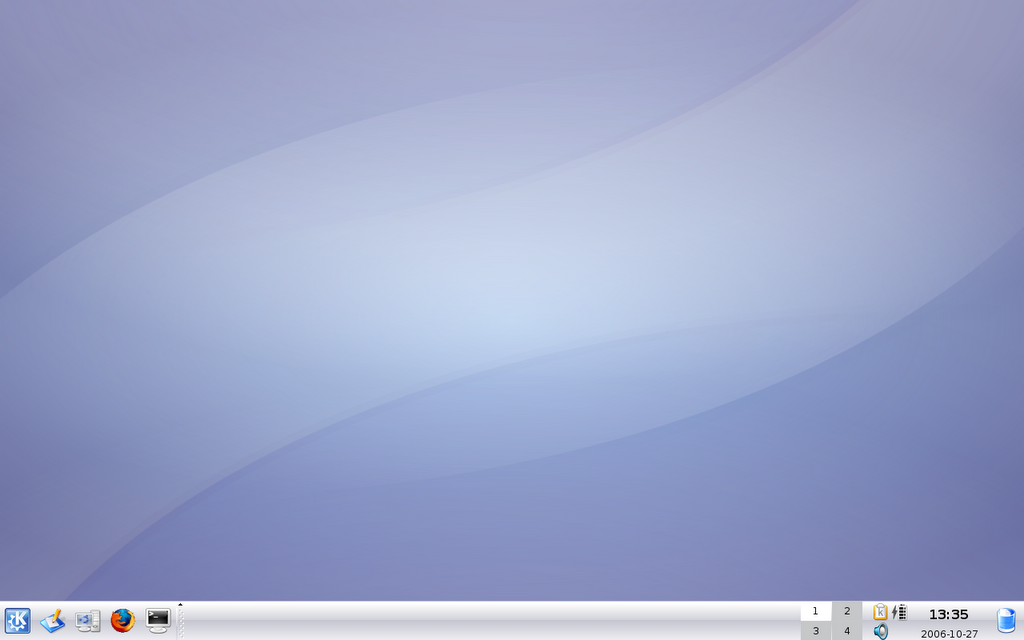
As soon as Edgy booted into the graphical environment, I was impressed by the beautiful and elegant desktop. Edgy definitely looks polished and pleasing. I noticed this version of Kubuntu has shifted from a highly bluish desktop to a violettish desktop which I liked very much. Without spending much time on the live CD, I headed for the installation. Installation was smooth, Kubuntu asked me some details about my login name and time zone, keyboard etc. Then I came to the partition manager with which I partioned my entire harddisk to my liking. The partition manager in Edgy is much improved than Dapper as I had much problem partitioning with Dapper. Dapper wouldn't mount the / partition in the right place and when I asked it to use the entire hard disk the partitions were not as right as what I got from OpenSuSE. After that, copying all the essential files from the live CD was fast and soon I rebooted into my new Kubuntu desktop.

The startup time was noticeably faster. It took exactly 1 minute to boot into the desktop whereas it used to take 1 minute 20 secs when I was using Dapper. This improvement must be due to Upstart instead of init. After install, everything worked fine, including the volume control buttons in my laptop which did not work in Dapper. One bug I noticed after booting was I got a message "laptop lid is closed" on the top right corner though it was not.

I searched for Firefox, but it was missing from the fresh install. I updated the sources list by changing to "Edgy" from "Dapper" in my old sources list. Then I did apt-get update and installed Firefox. Edgy includes the new Firefox 2 and after install, the fabulous browser worked fabulously.

Next I had to fix the screen resolution for my widescreen laptop. OpenSuSE could automagically install the 915resolution patch and setup the right resolution of 1280x800, but no other distro so far could do it. In Kubuntu I had to install "915resolution" and modify the xorg.conf file by changing the available displays to "1280x800". When I restarted X, the resolution was set correctly and I had a basic Kubuntu system installed. I am yet to install the other good stuff like the LaTeX packages, thunderbird, and then the Automatix2 script.

I am very happy with Edgy as I was with Dapper. I did not find any major gripes and I am loving it. Overall I would give a 8 out 10 for Edgy Eft.